AI Photo Enhancer - Evoke
- 4.6
- Rating
- 5.00M
- Installs
- Free
- Price
 Analysis by App-foxy
I started using AI Photo Enhancer - Evoke with a simple goal: make a few damaged family pictures easier to look at without spending an afternoon learning a full photo editor. That is the app’s strongest appeal. It is a photography tool from Guru AI Lab that focuses on improving old or imperfect images with AI, including restoration-style work, scratch removal, and colorization. In my experience, it feels aimed at people who want a quick visual rescue rather than a long list of manual controls.
The important distinction is that this is not just a conventional brightness, contrast, or sharpening editor. Its value comes from asking AI to interpret what may be missing or unclear in a picture. That makes the results more noticeable on portraits, faded prints, and lightly damaged family photos, but it also means the app is making creative guesses. I would recommend it to anyone who wants to revive a small personal archive, while I would be more cautious about using it as the only tool for professional restoration or historically accurate work.
How Evoke handles photo improvement in everyday use
I find Evoke most useful when I treat photo improvement as a sequence of small choices rather than a one-tap verdict. This section looks at how I’d choose a sensible first image, judge the result, and avoid confusing a polished appearance with an accurate restoration. That practical starting point makes the setup and first attempt easier to approach.
You May Also Like

 Blood Strike: 2.5 Anniversary
Blood Strike’s Loadouts Turn Every Drop Into a Tactical Gamble
A close look at Blood Strike’s custom loadouts: how fast access to signature weapons reshapes its battle royale rhythm, rewards preparation, and narrows the gap between fights.

 Pandora - Music & Podcasts
Pandora’s Music Is Easy to Start, but Harder to Recover
Pandora’s strength is its low-effort path from a seed to a station. Its weak spot is how much confidence it asks you to place in connection, setup, and quiet recovery.

 8 Ball Pool
 Is Built on Rivalries, Rematches, and Routine
A close look at the rivalries, rematches, shared routines, and unanswered safety questions that turn a quick pool match into a persistent mobile community.

 Samsung Music
’s Quiet Strength Is Playing What You Already Own
Its reach comes less from spectacle than from dependable access to a personal library. That simplicity is both the app’s strongest retention engine and its ceiling.

 AccuWeather: Weather Radar
AccuWeather Review: A Quick, Clear Forecast for Everyday Decisions
For everyday plans, the best forecast is the one you can understand quickly. AccuWeather makes rain timing, radar, and local conditions easy to act on, with a few trade-offs.

 Hill Climb Racing
Why Hill Climb Racing Still Turns Crashes Into One More Run
A tiny car, a bumpy hill and one more upgrade: Hill Climb Racing keeps resurfacing because its simple chaos makes every near-miss feel personal.
More From Our News Desk



Getting from an old picture to a usable result
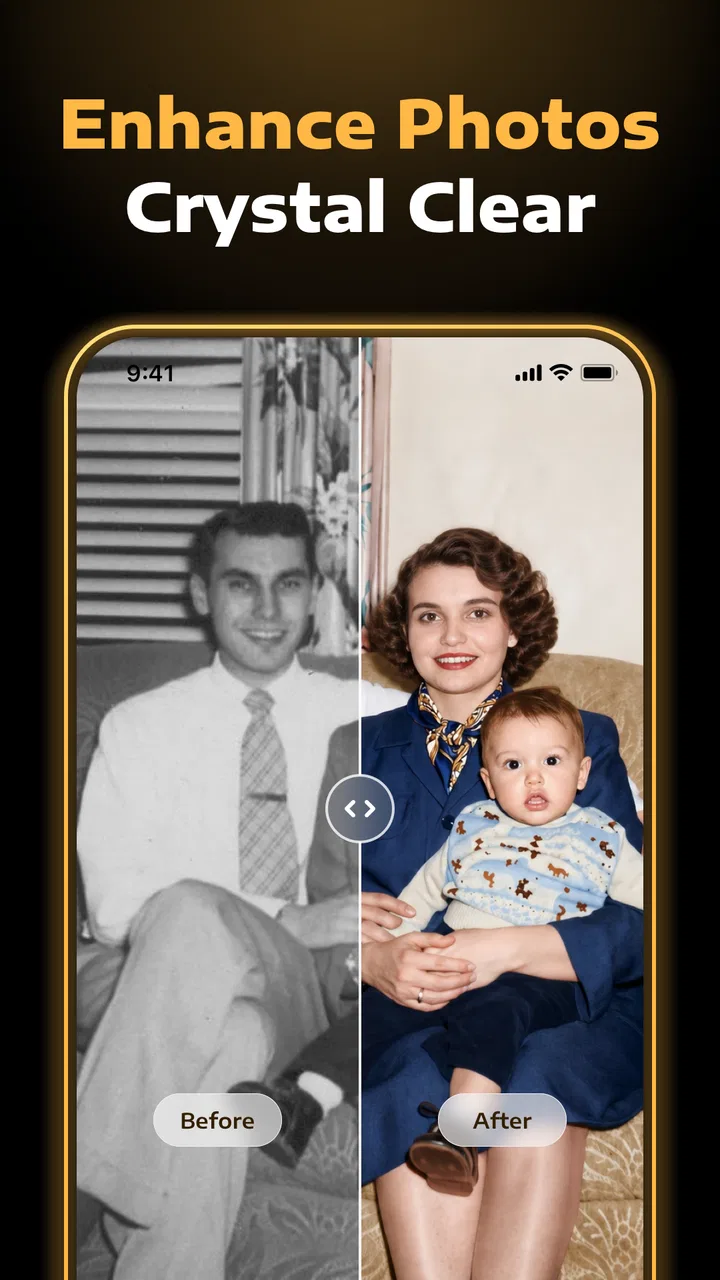
The basic workflow is approachable: choose an image, apply the relevant enhancement or restoration treatment, and inspect the result. That simplicity matters because many people opening this kind of app are not looking for a professional editing course. They may have a faded photograph saved in their phone gallery, a scanned print with visible marks, or an old portrait that looks soft after years of copying and sharing.
I found the most useful way to judge the output is to compare it with the original immediately, rather than trusting the processed version on its own. AI enhancement can make a face look clearer and bring back contrast, but a cleaner image is not automatically a more faithful one. Hair, eyes, fabric texture, and small background details deserve a close look before you decide that the result is ready to share.
The app’s focus on older pictures gives it a clearer identity than a general editor. A typical mobile editor is better when I want to crop a photo, adjust exposure, straighten a horizon, or make a controlled color change. Evoke makes more sense when the original problem is degradation: scratches, weak detail, or a black-and-white image that I want to view with added color.
Speed expectations and what affects the experience
AI processing naturally feels different from moving a slider in a standard editor. A basic adjustment usually responds as I work, while an AI treatment has to analyze the image and produce a new interpretation. I therefore treat Evoke as a short processing step rather than an instant editing canvas. The time can feel reasonable for one meaningful image, but it is not the kind of workflow I would choose when I need to make dozens of tiny corrections rapidly.
Image size and complexity are practical considerations. A close portrait with a clear subject is easier to evaluate than a crowded group scene, and an image with several scratches or very weak detail demands more patience during review. Even when the result arrives quickly, I would still zoom in before saving or sharing it. That extra check is especially important when the picture contains faces, text, jewelry, or repeated patterns that an AI system may interpret too aggressively.
For a realistic everyday example, imagine finding a small printed photograph while sorting through a drawer before a family gathering. I would scan or photograph it with the phone, use Evoke to improve the visible damage, and then compare the result with the original before sending it to relatives. That is a sensible use because the goal is a more presentable memory, not a museum-grade reconstruction. The app can save time compared with manually repairing every mark, even though I would not skip the inspection stage.
What happens during heavier use
The app is more convincing as a one-photo-at-a-time tool than as a production workstation. If I were processing a large collection, I would work in small batches and keep the originals untouched. This approach makes it easier to notice when the appearance changes from one image to the next, and it reduces the chance of losing track of which version is the source file and which is the AI-treated copy.
Heavy use also exposes a trade-off that is easy to miss in a short store description. Restoring an image is not always a single decision. I may try enhancement first, examine the face, then test colorization separately on a copy. That creates several candidate results, and the time spent comparing them can exceed the processing itself. Evoke is convenient when it gives me a strong first pass; it is less convenient when I need precise control over every stage.
I would avoid judging a whole archive from one successful sample. Old photos vary widely in paper quality, lighting, blur, cropping, and damage. A treatment that looks excellent on a clear head-and-shoulders portrait may be less persuasive on a group photo or a picture with a complex background. For a collection, I would test a few representative images first, then decide whether the app fits the rest of the work.
Reliability means checking the interpretation
In a restoration app, reliability is not only about whether the screen opens or a result is produced. It is also about whether the result remains believable. Evoke’s AI approach can improve the apparent clarity of a picture, but it may also smooth away texture or invent detail where the source is too weak. I see that as the central limitation of this category, not a reason to dismiss the app.
My practical rule is to keep the unedited image and treat every generated version as a proposal. For sentimental pictures, I would save the original separately before experimenting. If the result changes a distinctive facial feature, a uniform, handwriting, or an object that matters to the story, I would prefer a less dramatic version or return to a conventional editor for restrained corrections.
Colorization deserves the same caution. Added color can make an old image feel immediate and emotionally engaging, but it should be viewed as an interpretation rather than proof of the original colors. That makes the feature enjoyable for sharing and personal visualization, while a different workflow is better when accurate historical color is essential.
Device constraints and the Android baseline
Evoke is available as a free app, with optional in-app purchases ranging from about four dollars to around sixty dollars per item. That makes it easy to try before deciding whether its results justify spending money, but I would pay attention to the purchase screen and the value of repeated use. Someone restoring one or two pictures may be satisfied with a limited trial experience, while a person working through an archive should think carefully about the total cost of continued processing.
The app is rated for teenagers and supports Android phones running version seven or later. That broad compatibility is useful for people who keep an older Android device for family photos, although operating-system support alone does not guarantee an equally smooth experience on every handset. AI work can feel more demanding than ordinary cropping or color adjustment, so available storage, memory, and the age of the phone may affect how comfortable a longer session feels.
I would also avoid filling a nearly full device before starting a restoration project. Keeping the original and one or more processed copies is safer than replacing the source, and a collection of high-resolution images can become inconvenient to manage. A simple folder system—originals, experiments, and selected results—makes the app much easier to use responsibly.
Where it beats ordinary editors, and where it does not
Compared with a standard phone editor, Evoke has a more ambitious first pass. A normal editor expects me to decide how much sharpening, contrast, or saturation to apply. That is better for control, but it also requires judgment and time. Evoke is the more attractive choice when I want an automated attempt at recovering a face, reducing visible scratches, or imagining color in a monochrome photograph.
Compared with a professional desktop restoration workflow, the trade-off goes the other way. Desktop tools generally offer finer control, repeatable adjustments, layers, masks, and more careful retouching. They are preferable when the image is important enough to justify detailed work or when I need to preserve exact visual information. Evoke wins on accessibility: I can begin on a phone without building a complicated editing process.
There is also a middle ground. I can use Evoke for the difficult first pass, then finish the chosen image in a conventional editor. For example, I might use AI to improve a damaged portrait, crop the result manually, reduce an overly strong color effect, and add a modest brightness adjustment. This combined workflow is one of the app’s best practical uses because it separates interpretation from final presentation.
Three useful habits that improve the results
First, I would start with the cleanest source available. Photographing a print under even light, keeping the phone parallel to the paper, and avoiding reflections gives the AI more useful information than beginning with a dark, angled snapshot. Evoke can help with damage, but it cannot reliably recover detail that was never captured.
Second, I would crop only after testing the restoration when possible. A tight crop can help focus attention on a face, but it can also remove context that helps me judge whether the generated detail is believable. Keeping the wider original during the first comparison makes it easier to spot changes in clothing, background objects, or the shape of a person’s head.
Third, I would compare subtle and dramatic outcomes instead of automatically choosing the sharpest-looking one. Strong enhancement can be impressive in a quick preview, yet a softer version may look more natural when printed or viewed on a larger screen. The best result is often the one that improves recognition without making every edge look artificially crisp.
Who should use it, and who should skip it
I think Evoke is a good fit for casual family archiving, social sharing, and quick experiments with old portraits. It is especially approachable for someone who does not want to learn layers or repair tools before seeing whether a damaged picture can be improved. The free entry point also lowers the risk of trying the workflow on a few nonessential images first.
I would be less enthusiastic for professional photographers who need predictable, repeatable edits, or for researchers and archivists who require color and detail to remain strictly evidence-based. I would also skip it as a primary tool if my main need is ordinary photo editing rather than restoration. In that situation, a conventional editor may provide more direct control with less interpretation.
The app has attracted a 4.4 average from roughly forty-one thousand ratings and has passed one million installs, which suggests that its simple restoration idea has found a substantial audience. I still would not treat popularity as a guarantee for a particular photo. The deciding test is personal: process a few images with different levels of damage, inspect faces and fine details, and see whether the visual style matches what you want.
My performance verdict after using the workflow
My overall impression is that Evoke is best understood as a fast starting point for AI-assisted photo recovery, not a complete replacement for careful editing. Its strengths are clear: it brings restoration-style tools to a phone, makes old-photo experiments approachable, and can produce a more shareable image without demanding advanced technical knowledge.
The limitations are equally important. AI results need inspection, heavy batches require organization, and colorized or strongly enhanced details may be interpretations rather than recovered facts. Device age and available space can also influence how comfortable longer sessions feel, even though the app supports older Android versions.
Guru AI Lab’s app is worth trying if your camera roll contains faded family pictures, scratched prints, or black-and-white portraits that you would like to revisit. I would preserve every original, test the least aggressive treatment first, and use a regular editor afterward when I need precise finishing. With those expectations, AI Photo Enhancer - Evoke feels like a useful companion for personal photo rescue: convenient, accessible, and most convincing when I let it suggest an improvement rather than asking it to define the truth of the image.
FAQs for AI Photo Enhancer - Evoke
01What features does AI Photo Enhancer - Evoke offer?
AI Photo Enhancer - Evoke offers a range of features designed to improve your photos effortlessly. Key features include noise reduction, color enhancement, and detail sharpening. The app utilizes advanced AI algorithms to automatically adjust settings, providing professional-quality results with minimal effort. Users can also manually tweak settings for personalized edits.
02Is AI Photo Enhancer - Evoke easy to use for beginners?
Yes, AI Photo Enhancer - Evoke is designed with a user-friendly interface that caters to both beginners and experienced users. The app provides guided tutorials and intuitive controls, allowing users to quickly understand and utilize its features. Even without prior photo editing experience, users can achieve impressive results.
03What are the system requirements for AI Photo Enhancer - Evoke?
AI Photo Enhancer - Evoke is compatible with both Android and iOS devices. For Android, it requires version 7.0 or higher, while iOS users need version 12.0 or later. The app runs smoothly on most modern smartphones and tablets, ensuring a seamless editing experience for all users.
04Does AI Photo Enhancer - Evoke offer any in-app purchases?
Yes, while AI Photo Enhancer - Evoke offers a range of free features, there are also premium options available through in-app purchases. These may include advanced editing tools, additional filters, and high-resolution export capabilities. Users can choose to upgrade to enhance their editing experience further.
05How secure is my data with AI Photo Enhancer - Evoke?
AI Photo Enhancer - Evoke prioritizes user data security. The app ensures that all photos and edits remain private and are not stored on external servers. It uses advanced encryption protocols to protect user data, providing peace of mind for those concerned about privacy and security.
Pros
- Intuitive interface for easy navigation.
- High-quality photo enhancements instantly.
- Supports batch processing for efficiency.
- Wide range of filters and effects available.
- No intrusive ads disrupt the experience.
Cons
- Limited free features without subscription.
- Occasional slow processing on older devices.
- Some filters can be too aggressive.
- Requires internet connection for full features.
- Lacks detailed editing tools for precision.

AI Photo Enhancer - Evoke
Gallery